 SpringDesk
Why desktop icons move on Windows 11, and how to stop it
You arrange your desktop, then plug in a monitor, dock your laptop or connect over Remote Desktop, and come back to icons in a different order. Here's why Windows does that, what helps, and how to keep a layout that stays where you put it.
Why it happens
Windows places desktop icons on a grid, and the grid depends on the screen size and scaling. When either changes, Windows fits the icons onto the new grid, and they can end up in a different order. Common triggers:
- Connecting or disconnecting a monitor, or changing which one is the main display.
- Docking or undocking a laptop.
- Signing in over Remote Desktop, which uses the screen size of the computer you connect from.
- A game or app that changes the resolution, or a display driver update.
- Changing Scale in Settings › System › Display.
If Auto arrange icons is on, Windows also packs the icons into columns from the top left every time something changes.
What helps in Windows 11
- Turn off Auto arrange. Right-click the desktop, open View, untick Auto arrange icons and keep Align icons to grid on, so icons stay where you drop them.
- Keep the same main display. In Settings › System › Display, select the monitor you want and tick Make this my main display. The desktop icons live on the main display.
- Use the same scaling on the screens you switch between, in Settings › System › Display › Scale.
- Match the resolution in Remote Desktop. In Remote Desktop Connection, open Show Options › Display and choose the same size as your own screen.
- Save and restore the layout. Free tools such as DesktopOK save your icon positions and put them back after a change, by hand or on a schedule.
A layout that doesn't depend on the screen
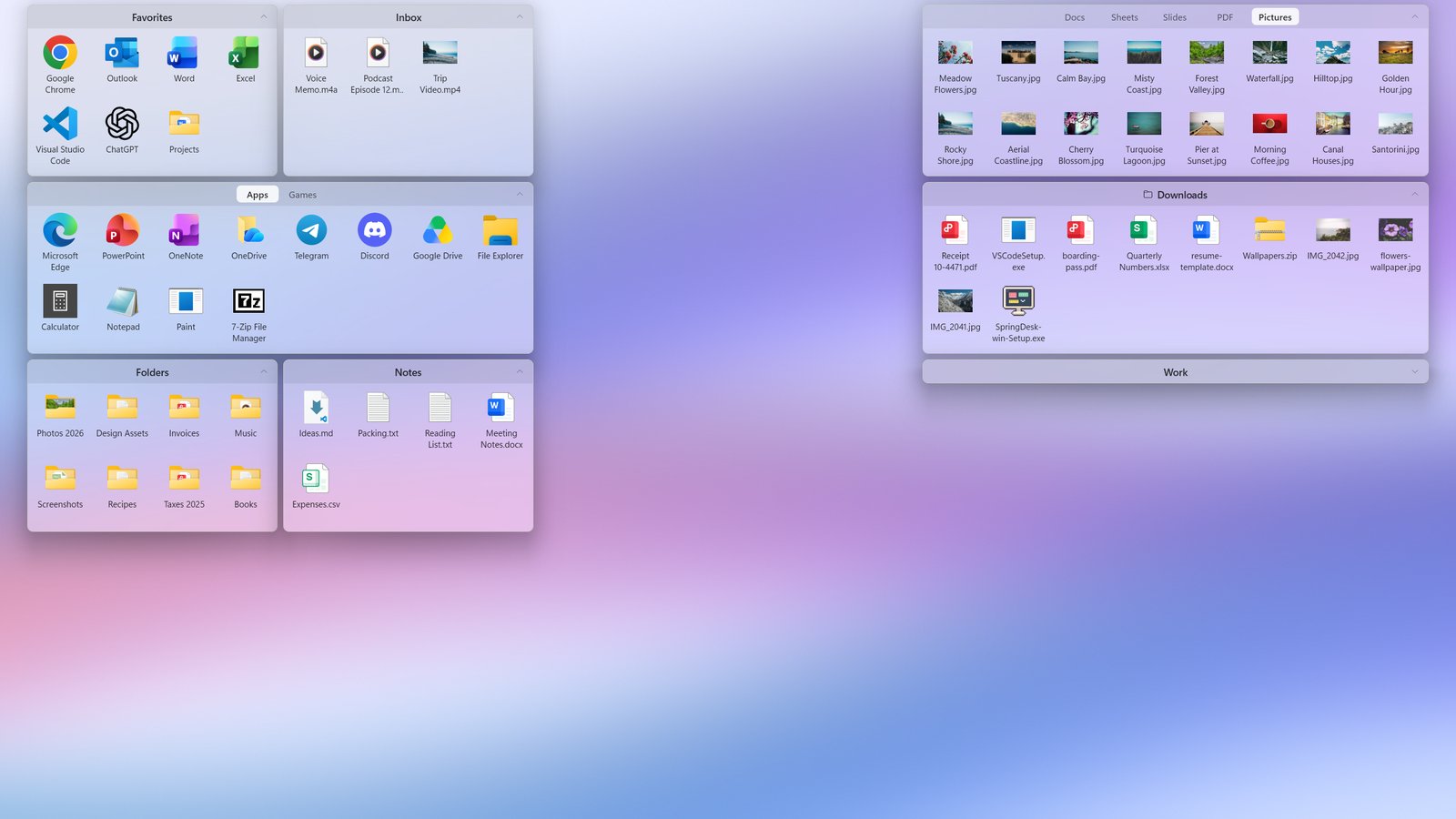
SpringDesk shows your desktop in clear glass boxes and keeps its own layout. One layout covers every screen you use: on a different monitor, a different scaling or a Remote Desktop session, the boxes keep their arrangement and fit the screen in proportion, and back on the original screen every box returns exactly where it was. Lock the layout so a stray drag doesn't move a box. SpringDesk also keeps a daily backup of the layout.
Keep in mind: SpringDesk needs Windows 11 and is paid after a 7-day trial. It hides Windows' own desktop icons while it runs and shows them in its boxes; your files stay in your Desktop folder, and when you quit, the desktop is back as Windows had it.
Try SpringDesk free for 7 days
One layout across screens, new files sorted by type, Space to preview and Alt+Space to search, for Windows 11. One-time purchase after the trial, no subscription.

Questions
Why do my desktop icons move when I connect a second monitor?
Windows places desktop icons on a grid that depends on the screen size and scaling. When a monitor is connected or disconnected, or the main display changes, the grid changes and Windows fits the icons onto the new one, so they can end up in a different order.
How do I stop Windows 11 from rearranging desktop icons?
Right-click the desktop, open View, turn off Auto arrange icons and keep Align icons to grid on. Keep the same main display and the same scaling on the screens you switch between. If the screen still changes often, a tool that saves and restores icon positions, or a desktop organizer that keeps its own layout, keeps the arrangement you chose.
Do desktop icons move after using Remote Desktop?
They can. A Remote Desktop session uses the screen size of the computer you connect from, so the desktop is laid out for that size. Choosing the same resolution in Remote Desktop Connection helps. SpringDesk fits its layout to the session and puts every box back where it was when you're on your own screen again.
More: how to organize your Windows 11 desktop and desktop organizers compared.